Just like other web browsers, Google Chrome has in-built password management feature. It allows you to save and store username – password details of your web accounts at Facebook, Gmail, Yahoo and much more. Once password is saved, you can login into web accounts quickly without having to type username and password details at every login session. Besides saving passwords, you can also view passwords for various accounts already stored in Google Chrome.
Enable password saving prompt in Google Chrome
Google Chrome will display prompt bar at the top while you login into any web account. This bar in Google Chrome offers you save password for quicker login in future. Hence, you need to enable ‘offer to save password’ option to get this privilege of Google Chrome saving your password.
1. Open Google Chrome browser on your computer and click on Settings icon at top right. Then click on Settings option to open Google Chrome Settings page. Alternatively, you can directly open Chrome settings page by typing chrome://chrome/settings/ url in the address bar.
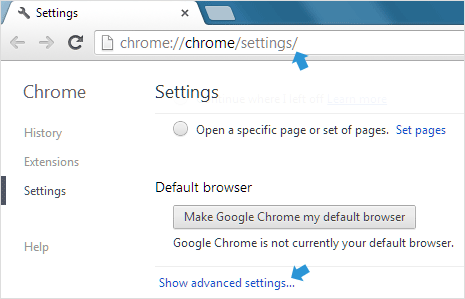
2. Scroll down the Chrome Settings page and then click Show Advanced Settings option at the bottom. Then further scroll down and look for “Passwords and Forms” section.
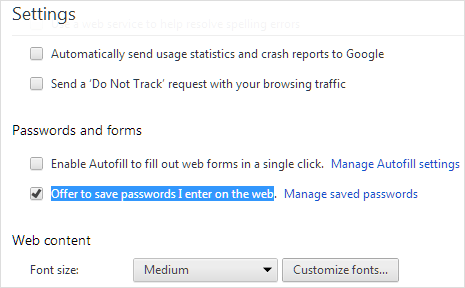
3. Here click to check “Offer to save passwords I enter on the web” option. This will enable automatic login password saving feature in Google Chrome browser installed on your computer.
View already saved passwords in Google Chrome
1. Open Google Chrome options webpage (repeat step 1 and 2 above) to navigate to “Passwords and Forms” section on Google Chrome’s Settings page. Then click ‘Manage saved passwords’ button to open new pop-up window.
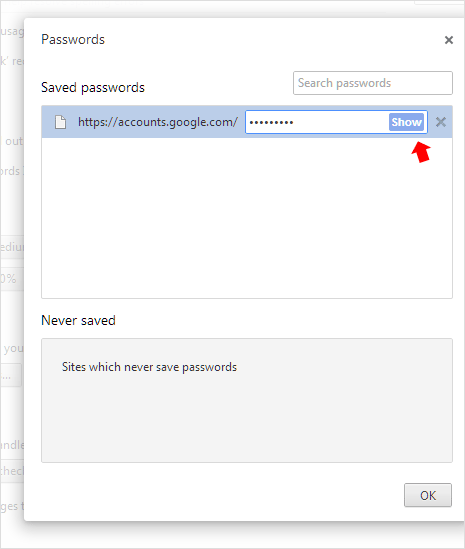
2. A new window will open showing list of saved passwords in Chrome browser on your PC. It also displays webites which never save passwords exceptions that you may have configured. Click Show button next to star to reveal stored password for that web account. Similarly, you can view password for any stored web account in Google Chrome.
Video: How to see saved passwords in Google Chrome
Utility to view Saved passwords stored in Chrome
In case you want simpler way to view password stored in Google Chrome, then use ChromePass. It is a small executable utility that display list of username and passwords stored in Chrome in a single click. Hence to view passwords stored in Google Chrome: you can either use manual method or quicker method via ChromePass utility. Take your pick. Also, checkout 5+ Ways to Store & Manage Passwords on your PC. [Updated on Dec 31, 2012]