Do you want to capture still images from a FLV Youtube video? Flapture is a free Adobe Air program that makes this all easy and quick. You can load and play any FLV Youtube video in this program, pause the video and capture screenshot of that moment. To get started, you need to have FLV video on the computer or download it from Youtube using Zamzar.com or either of many ways.
Use Flapture to take Screenshots of Video
1. Download Flapture program (it requires Adobe AIR 1.5).
2. Install the program and launch it for use.
3. Click Open Directory button to select folder with FLV file(s).
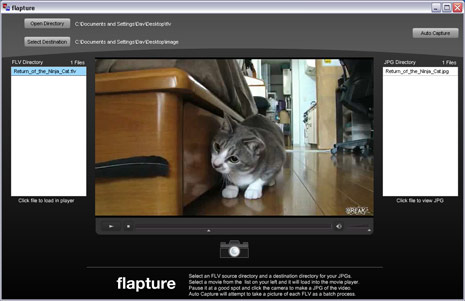
4. Click Select Destination button to specify folder to store JPEG images.
5. While video is playing, click Camera button to capture screenshot. You can also use Auto Capture button at top right.
Output image can only be saved in JPEG image format. Depending on the quality of FLV video being used, final image capture is neat. Grab Flapture for easy capture of screenshots from Youtube videos or try Video to JPG converter to do same with other type of videos.